
Complete feature walkthroughs
Booth-Companion guide
Learn how every major Booth-Companion feature works, from currency conversion and price tracking to library tools, product comparison, shop controls, themes, and backups.
Guide index
Chapter 1
Currency/Price Conversion
Open the Booth-Companion settings wheel in the bottom-left corner of Booth.pm, then choose your preferred currency from the dropdown list. This keeps every price conversion aligned with your shopping currency.

1.1 Automatic
The automatic refresh should be enabled by default. Double-check the toggle inside the currency section and switch it on if needed so Booth-Companion keeps rates up to date for you.

1.2 Manual
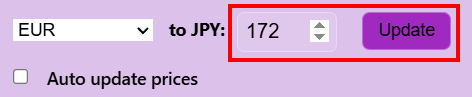
If you prefer full control, deactivate Automatic update prices, type in your custom exchange rate, and press Update to recalculate every visible price instantly.
Chapter 2
Badges, Spendings & Totals
Use the totals and badge features to keep track of what you have already bought, received as a gift, or still plan to purchase. The following steps show where to enable each option and how they appear inside Booth.
2.1 Total Spend/Wishlisted
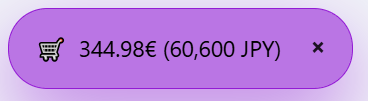
Enable Show total spent/favorited in the Booth-Companion overlay and then visit your purchases or wishlist. A new popup appears in the top-right corner summarizing your total spending or the combined cost of your wishlist.

2.2 Badges
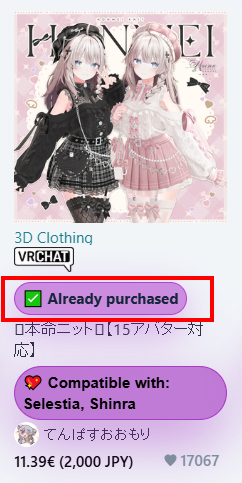
Toggle the Owned badge and/or Gifted badge options, then press Start scan. Booth-Companion will open the relevant Booth pages and scan them automatically. Once the scan completes, the badges appear on each item card to show what you have already purchased or received.
Chapter 3
Formatting and Punctuation
Use the Format tab to tailor how Booth-Companion displays currencies. Pick where symbols or currency codes appear, and decide which punctuation style feels most natural when you scan prices.

3.1 Formatting
Choose whether the currency symbol or its letter abbreviation is shown before or after the number. Tap one of the price tags below to mirror how Booth will format prices for you.
3.2 Punctuation
Select the punctuation style Booth-Companion should apply. Switch between U.S. commas and decimal points or the European period-and-comma layout and watch the preview update instantly.
Chapter 4
Avatar Matcher/Highlighter
Highlight compatible assets right on each Booth item card. Once configured, Booth-Companion scans listings for your avatar and marks every match so you know what fits before opening the product page.

4.1 Setup
Open the Avatar tab and press Add Avatar. Enter the avatar name and, if available, add aliases like the Japanese name for even more accurate matches. Press Save to store the profile, then tick Fetch Avatar matches so Booth-Companion can highlight compatible items as you browse. Reload BOOTH after changing this toggle. Turning it off stops new compatibility matching after the reload, but it does not delete your saved avatars or aliases.

4.2 Instant Filter
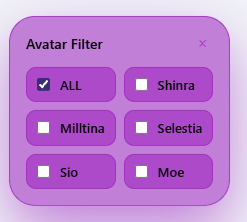
The Show Avatar filter panel toggle is usually on by default. If it is not, enable it inside the Avatar tab. This adds a quick-filter panel for compatible assets. ALL keeps every matched listing visible, while individual avatar checkboxes narrow the results to those avatars. These filter checkboxes do not change your saved avatar profiles.
Chapter 5
Language Selection
Customize Booth-Companion to your preferred language so every button, label, and notification feels familiar. The language selector lives directly inside the Settings tab, making it easy to switch at any time.

5.1 Choose your language
Open the Settings tab and use the Language dropdown at the top to select the interface language you prefer. Confirm the change and Booth-Companion updates the UI instantly.

5.2 Selected BOOTH interface labels
Changing the language also translates selected BOOTH controls, including wish-list dialogs, followed shops, orders, conversations, marketplace sections, search totals, and notification settings. Product names, seller descriptions, and other creator-written content remain as published.
Chapter 6
Infinite Scroll
Keep browsing search results without ever clicking to the next page. Booth-Companion’s infinite scroll automatically loads more items as you reach the end of the list, making discovery seamless.

6.1 Enable Infinite Scroll
Open the Settings tab and toggle on Enable Infinite Scroll on search pages. With the feature enabled, Booth automatically appends new results as you scroll so you never have to change pages again.

Chapter 7
Free Item Highlighter
Let Booth-Companion flag every freebie at a glance. The free item highlighter adds a standout badge so you never miss zero-cost downloads while scrolling Booth listings.

7.1 Enable highlight
Open the Price tab inside Booth-Companion’s overlay and switch on Highlight free items. After refreshing the page, any matching listing gains a bright label so the free items stand out instantly.

Chapter 8
Design Customization
Make the Booth-Companion overlay feel like home. The Theme tab lets you start with curated presets, tweak every color, and fine-tune the glass and glow accents until the interface matches your taste.
8.1 Presets
Open the preset dropdown at the top of the Theme tab to jump between Booth’s default styling and Booth-Companion themes such as Yuna Blue, Sakura Bloom, Midnight Violet, Emerald Glow, Sunset Ember, Arctic Drift, and Solar Dawn. Selecting a preset instantly applies its palette and panel effects so you can preview an entire look in one click.

8.2 Saved themes
After dialing in colors and sliders, name your creation in the Saved themes box and press Save theme. Your collection appears just below with Load and Delete buttons, making it easy to swap between personal styles or clean up ones you no longer need.
8.3 Theme codes
Use the Theme code field to share or import entire layouts. Click Export current theme to copy a sharable string, or paste a code from a friend and hit Import theme to bring it into your saved list.
8.4 UI & text colors
Adjust the base interface colors with the UI color and UI text color pickers. These control your overlay background tint and the default copy color used across the settings panel.
8.5 Button colors
Use the Button color and Button text controls to recolor call-to-action buttons throughout Booth-Companion. Matching the text contrast keeps every button legible even when you pick vivid hues.
8.6 Info & popout colors
Fine-tune the accent cards with dedicated pickers for Info box color, Info box text, Popup color, and Popup text. These settings cover status callouts and popout panels so everything aligns with your theme.
8.7 Glass morphism
Toggle Enable glass effect to add translucent panels, then refine the look with the Glass blur and Glass opacity sliders. Lower opacity keeps things crisp, while higher blur delivers a frosted-glass aesthetic.
8.8 Surface fill
Control how solid each panel appears with the Surface intensity slider. For an extra wash of color, enable Full background color wash and adjust the Color wash strength slider to dial in the gradient.
8.9 Layout & glow
Round off the experience by setting the Panel corner radius and Glow intensity. Softer corners and a gentle glow keep things cozy, while sharper edges and low glow maintain a minimal look.
Chapter 9
Price tracker and history
Follow actual BOOTH item-price changes and keep a seven-day record of recent changes without maintaining a separate list by hand.
9.1 Watch and manage items
Open a supported BOOTH product page and select Watch price. The Tracker tab separates manually watched items from cart imports, shows the latest known JPY price, and lets you remove individual entries or clear the list. Up to 300 items can be watched. When a later check detects a change, Booth-Companion shows an overview; the radar button near your BOOTH profile reopens changes from the last seven days.
9.2 Imports, local mode, and Discord
Auto-import cart items is enabled by default. Booth-Companion reads your signed-in cart from any BOOTH page, so you do not need to visit the cart. Turning it off stops new automatic imports but does not remove items already tracked. Use Import wishlist for a one-time bulk import; the first-run checkbox Import my wishlist into Price Tracker performs the same action. Local-only price fetching is off by default. Enable it to read supported BOOTH item pages directly and skip the Booth-Companion item-metadata API. Discord export copies a mass-import command for the Booth-Companion Discord bot so the same item IDs can receive Discord alerts.
9.3 Converted-price history
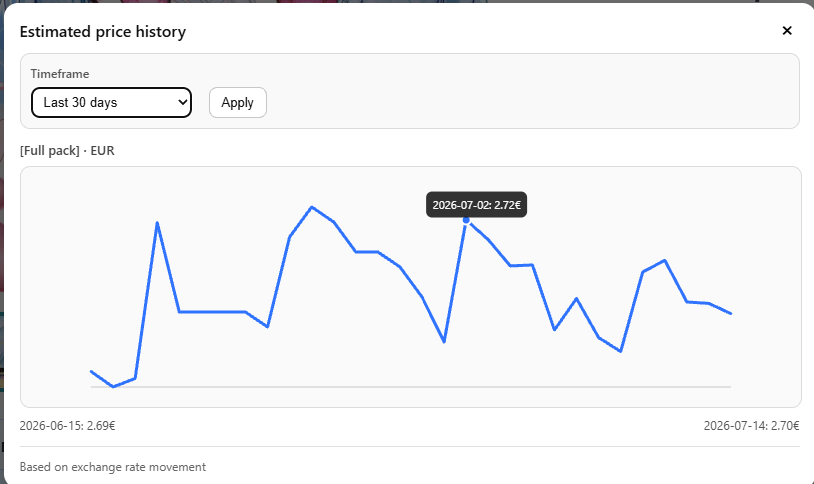
Select the chart button beside a converted price to view the last 7, 30, or 90 days, or choose a custom date range. This chart estimates how the current JPY price would have converted as exchange rates moved. It is not a history of the seller's JPY price.
Chapter 10
Library and wish-list tools
Find assets you already own, narrow a long wish list, or save a portable record of your BOOTH library.
10.1 Search your library
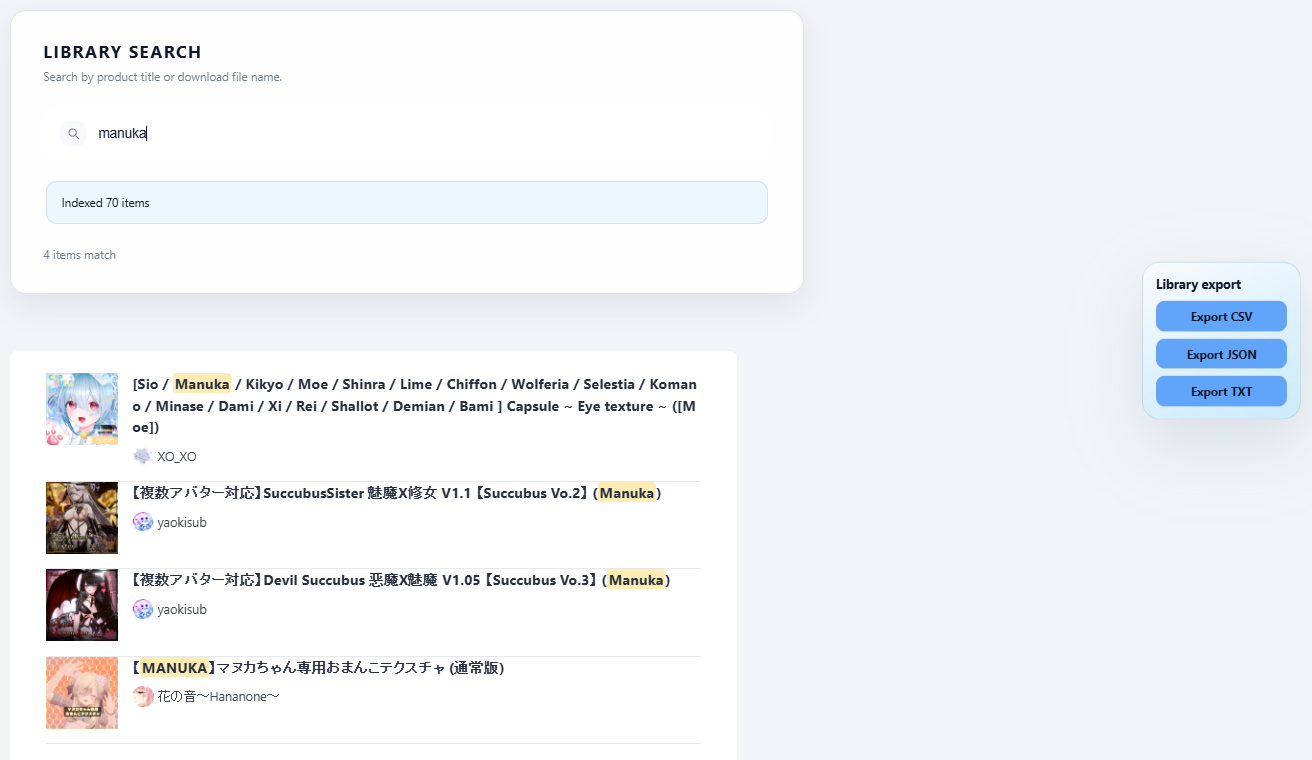
Enable the library search bar in Settings, then open your BOOTH Library or Gift page. Search matches both product titles and download file names, including files inside products with many download options. The tool indexes the relevant library pages available to your signed-in BOOTH session.
10.2 Search and filter your wish list
Enable the wish-list search bar in Settings and open Loved Items. Enter part of a product title for instant matches, then use the minimum and maximum price sliders to keep only items inside the JPY range you want.
10.3 Export your library
On the BOOTH Library page, use Library export to download CSV, JSON, or TXT. The export collects product and creator details plus available download names and links across your library pages, which is useful for inventories and backups.
Chapter 11
Compare products
Keep several promising listings together and inspect the details that matter before opening every product in a separate tab.
11.1 Choose items
Turn on compare mode in Settings and choose a limit from 2 to 10 items. Select Compare on search, category, or wish-list cards. A comparison bar keeps the selected products visible and lets you remove an item or clear the selection.
11.2 Review them side by side
Open Compare from the selection bar to review each item's price, shop, description, and detected buy options, bundles, or avatars in one view. Use Open item when you are ready to inspect the original BOOTH page.
Chapter 12
Bundles and dependencies
Booth-Companion adds context around product options so you can judge a pack's value and notice software or shader requirements before buying.
12.1 Check FullPack value
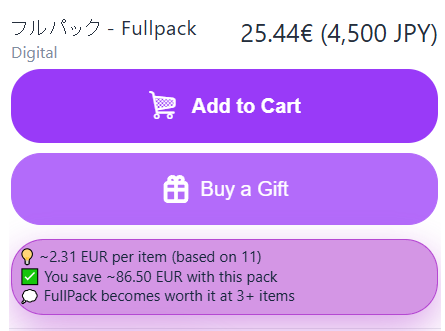
For supported FullPack and bundle options, the info box estimates the cost per item, compares the pack with buying matching options separately, and shows the break-even item count. If owned-item scanning is enabled, the calculation can also consider which matching products you already own.
12.2 Verify dependencies
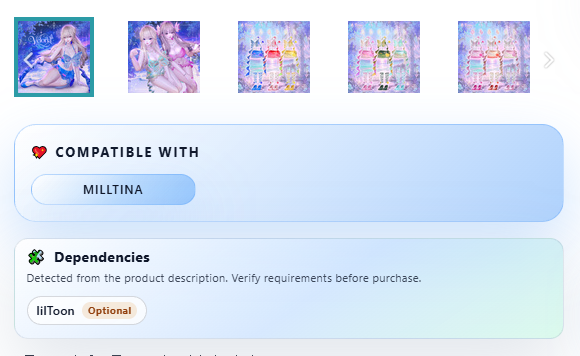
Enable Show dependencies in Settings. On supported product pages, Booth-Companion scans the seller's description for known tools and shaders, labels each result as Required, Optional, or Mentioned, and links to its official site. Detection is a shopping aid, so always verify the seller's original instructions before purchase.
Chapter 13
Favorite and blocked shops
Use the Shops tab to make favorite creators stand out and remove unwanted shops from busy listing pages.
13.1 Favorite shops
Enter the shop subdomain, which is the part before .booth.pm, and add it to Favorites. Listings from that creator receive a glow. After at least one favorite exists, the Only show favorited shops toggle becomes available in the BOOTH search sidebar. Turn it on to show only favorite creators, or turn it off to restore all nonblocked listings.
13.2 Block or filter shops
Add a shop subdomain to Blocked shops to hide its listings on supported pages. A shop cannot be favorited and blocked at the same time, and either list can be changed later from the Shops tab.
Chapter 14
Backup and restore
Keep a copy of your setup before reinstalling the extension, changing browsers, or experimenting with many settings.
14.1 Export and import settings
Open Settings and choose Export settings (JSON) to download booth-companion-settings.json. On another installation, choose Import settings and select that file. Valid settings are restored to local extension storage and the BOOTH page reloads to apply them. Keep the backup private because it can include your local preferences and tracked item IDs.